
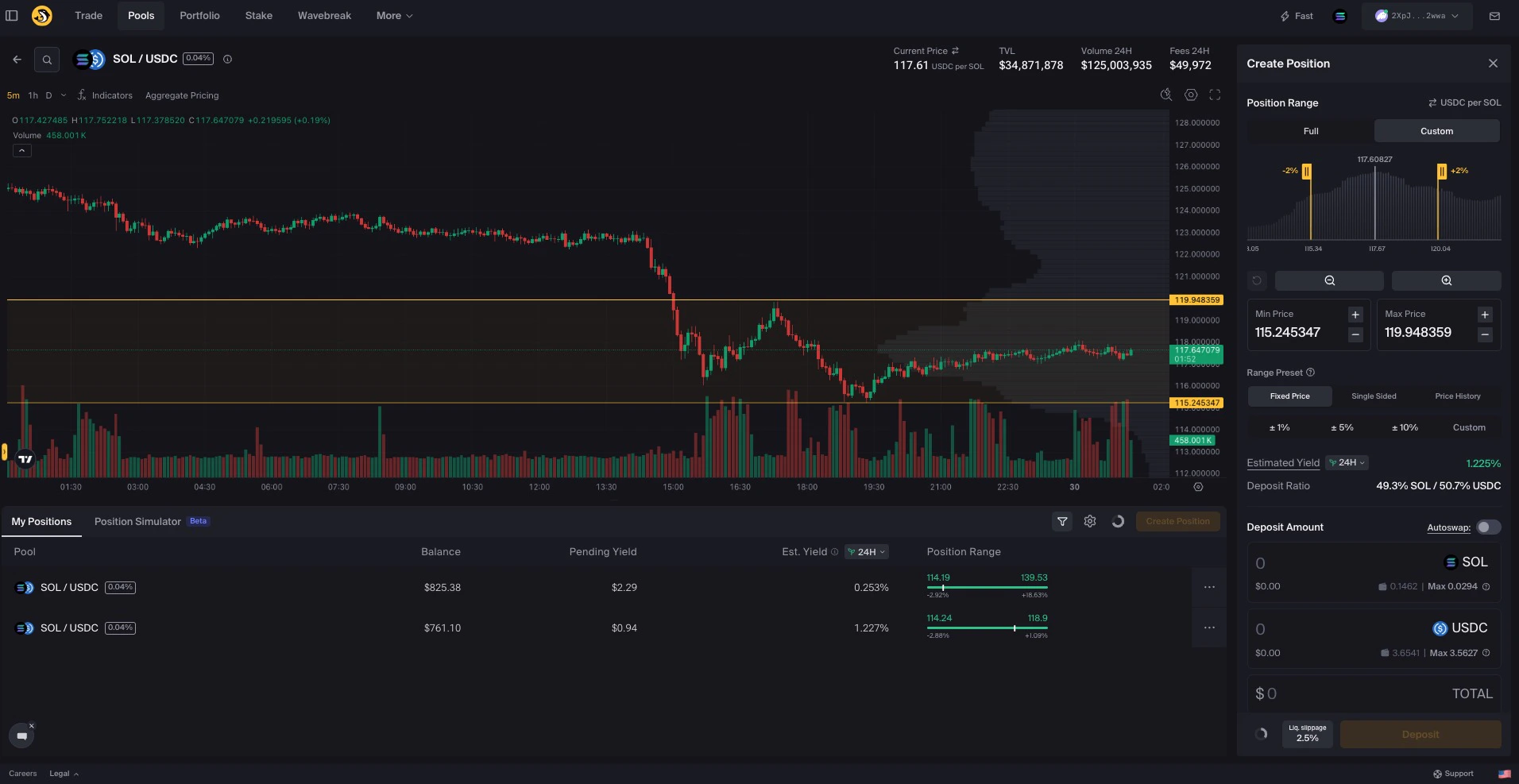
A central feature of the Liquidity Terminal is the integrated price charts. This chart displays the combined price trend for this token pair across the entire ecosystem. Individual pool prices, including Orca’s, may vary due to localized liquidity and trading activity.Documentation Index
Fetch the complete documentation index at: https://docs.orca.so/llms.txt
Use this file to discover all available pages before exploring further.
Price Chart Overview
While the Liquidity Terminal’s price chart includes a range of advanced features, its core layout is straightforward. The horizontal axis represents time. The vertical axis represents price. At a glance, the chart lets you track how price has moved over time. Beyond that, the chart includes tools for drawing, analysis, and customization—supporting more informed liquidity provision strategies. WhenCustom is selected in the Create Position sidebar, you’ll also be able to adjust your selected price range directly on the chart.
→ See the Create a Custom Range how-to guide for a step-by-step walkthrough,
The controls for the price chart interface is divided into two main toolbars and two axis control panels:
- Top toolbar overview
Time Interval
Select the time interval for each candlestick. Options range from minutes to days. For example, selecting a 15-minute interval means each candlestick represents 15 minutes of price activity.Indicators
Add technical indicators to support your analysis. These tools highlight trends or patterns based on price movements or volume. Selected indicators will appear directly in the chart pane.Chart Settings
Customize your chart’s appearance and behavior. Click theSettings icon in the top right corner, or double-click a candlestick to open the configuration panel. You can adjust visual styles, scale options, and other display settings.
Fullscreen Mode
Switch to fullscreen for a focused chart view. This hides surrounding panels, allowing you to analyze the chart without distractions. The fullscreen toggle is located next to theSettings icon.
- Left toolbar overview
- Add trend lines, shapes, and markers
- Annotate price levels and ranges
- Measure movements and forecast potential scenarios
- Leave comments or notes directly on the chart
- Right control panel overview
A to enable Auto mode (which fits all visible data to the screen), or L to switch to a logarithmic scale.
- Bottom panel: x-axis controls and further settings
Settings icon at the right end of the axis. This opens the price scale settings, where you can choose the scale mode, configure label visibility, and adjust other display preferences.
Each section is designed to provide quick access to essential tools without cluttering your workspace. You can interact with these elements directly or use keyboard shortcuts for faster navigation. Shortcuts are visible when you hover over components or open the relevant menus.
We’d Love to Hear from you!
Need support or want to share feedback?- Open a support ticket directly from the Orca UI by clicking
Support(recommended) - Reach out on Discord or Telegram