
Stop watching charts. Start getting notified. Orca Alerts let you know the moment any position moves out of range—so you can take action, stay in range, and keep those fees flowing. Set up takes seconds, and you can receive notifications in-app, via Telegram, or by email.Documentation Index
Fetch the complete documentation index at: https://docs.orca.so/llms.txt
Use this file to discover all available pages before exploring further.
Orca Alerts are powered by Dialect, providing fast and reliable real-time messaging infrastructure on Solana.
Why Alerts Matter
With concentrated liquidity, your position only earns fees while the price stays within your selected range. When price drifts outside that range:- Your position stops earning — No trades happen at your price points
- You might want to rebalance — Adjust your range to get back in the action
- Time is money — The sooner you know, the faster you can act
Opening the Notifications Panel
You can access alerts from anywhere on Orca using the envelope icon in the top-right corner of the navigation bar, next to your wallet.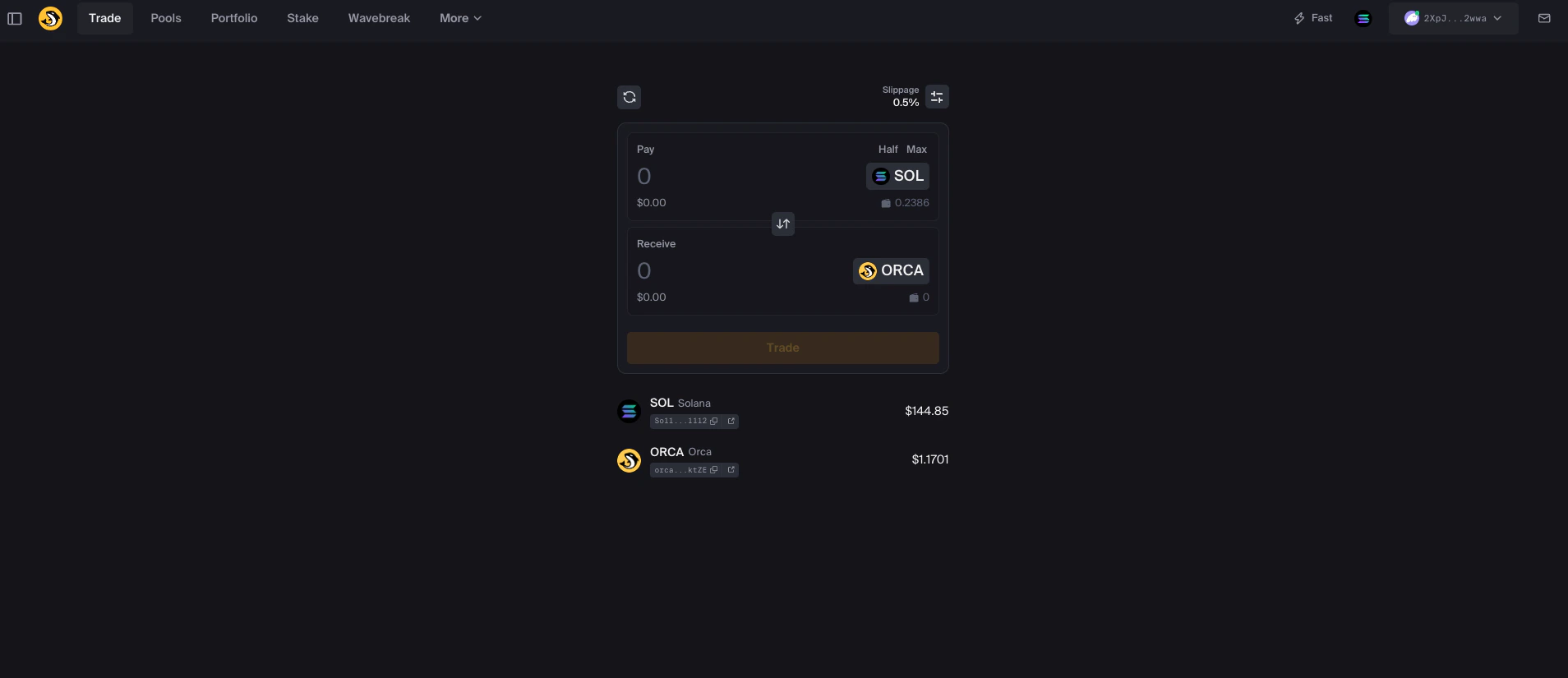
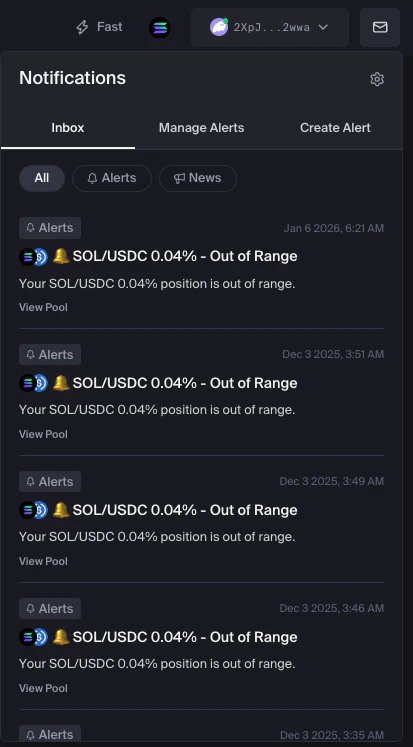
| Tab | What It Does |
|---|---|
| Inbox | View all your notifications—filter by Alerts or News |
| Manage Alerts | See, toggle, or delete your existing alerts |
| Create Alert | Set up a new alert for any position |
Creating an Alert
Setting up an alert takes just a few seconds:Open the Create Alert tab
Click the envelope icon in the navigation bar, then select the Create Alert tab.
Select your position
Use the dropdown to choose which position you want to monitor. You’ll see the pool pair, fee tier, current range, and balance for each position.
Name your alert
Give your alert a nickname. By default, it uses the pool name (e.g., “SOL/USDC 0.04%”), but you can customize it to something more descriptive.
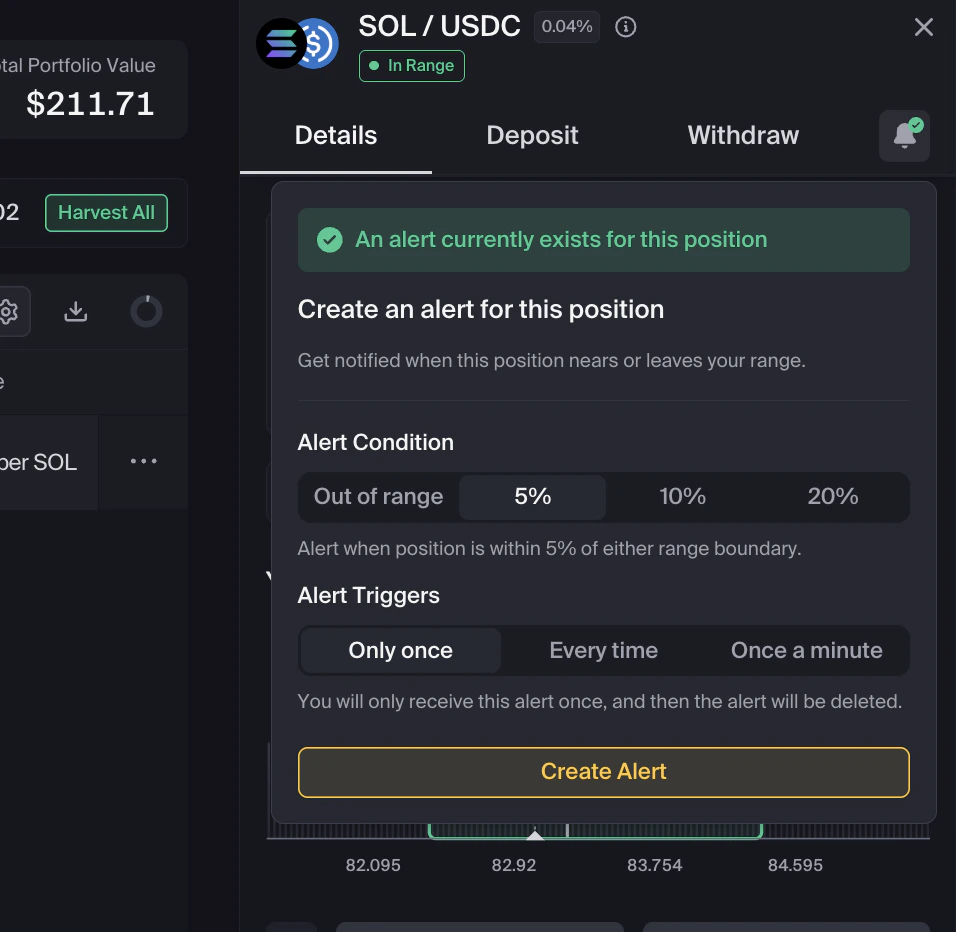
Choose your alert condition
Pick when you want to be notified:
The 5%, 10%, and 20% options fire before you go out of range, giving you time to reposition or close.
| Condition | Triggers when |
|---|---|
| Out of range | Price exits your position’s range |
| 5% | Price comes within 5% of either range boundary |
| 10% | Price comes within 10% of either range boundary |
| 20% | Price comes within 20% of either range boundary |
Set the trigger frequency
Choose how often you want to be notified:
| Trigger | Behavior |
|---|---|
| Only once | You’ll receive one notification, then the alert is automatically deleted |
| Every time | Get notified each time the condition is met |
| Once a minute | Receive at most one notification per minute while the condition persists |

Managing Your Alerts
Head to the Manage Alerts tab to see all your alerts at a glance. You can filter by:- All — Every alert you’ve created
- Active — Alerts currently monitoring your positions
- Inactive — Alerts you’ve paused
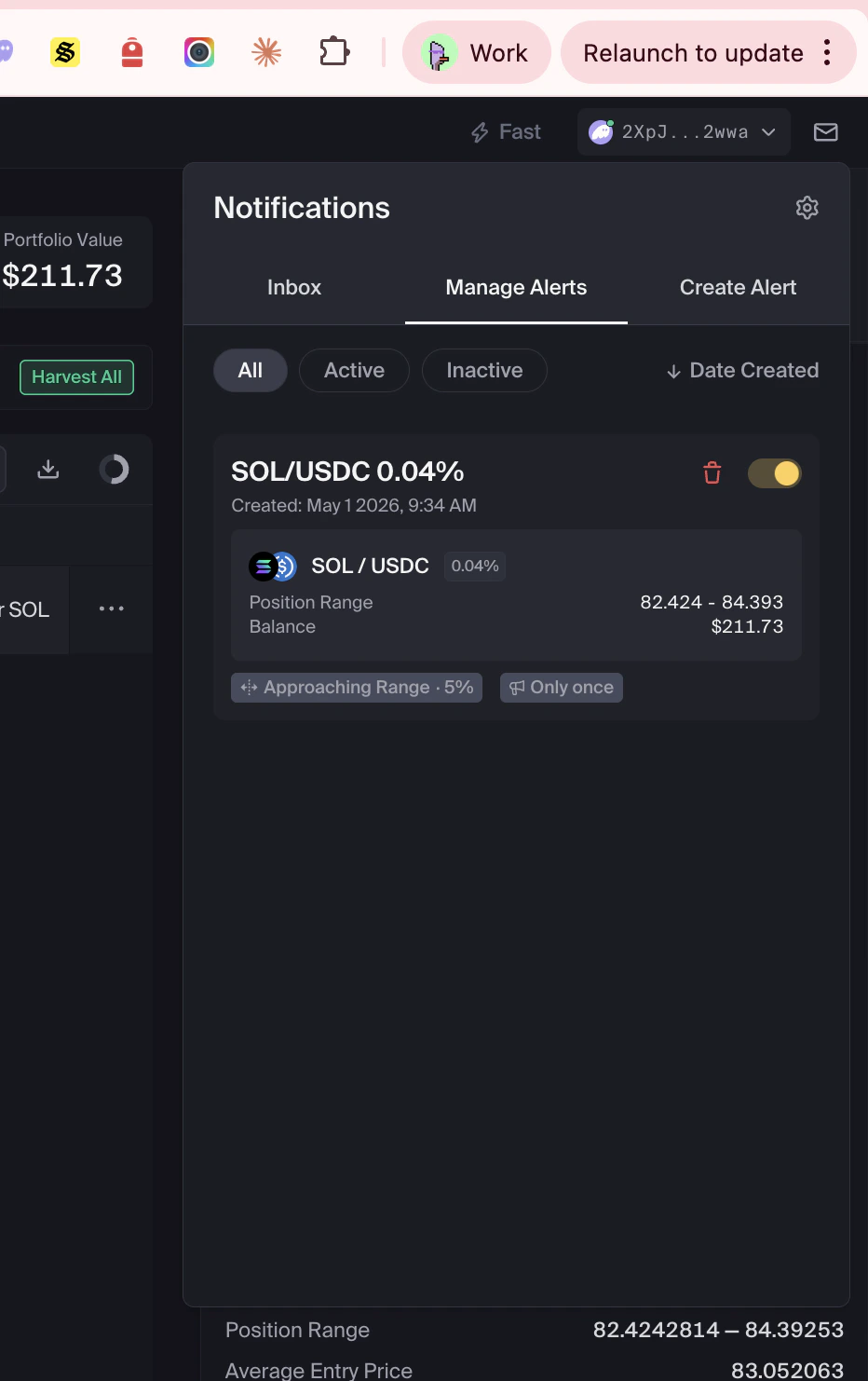
- The alert nickname and creation date
- Pool details (pair, fee tier, range, balance)
- Alert condition and trigger frequency
- Toggle switch to enable/disable
- Delete button
Pause or Resume an Alert
Use the toggle switch on any alert to pause it without deleting. Toggle it back on whenever you’re ready to resume notifications.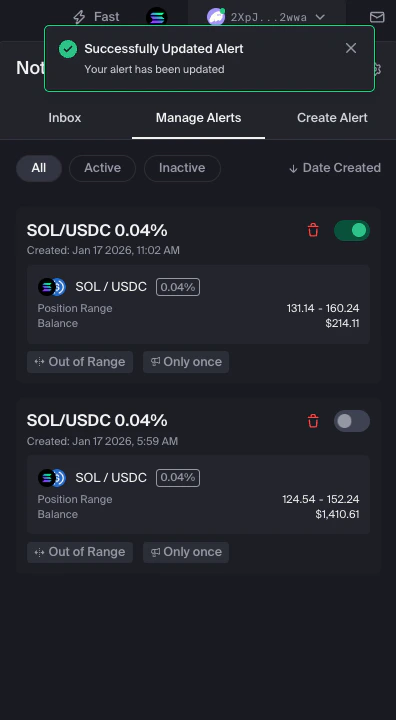
Delete an Alert
Click the trash icon on any alert. You’ll see a confirmation prompt—click Delete to confirm, or Cancel to keep it.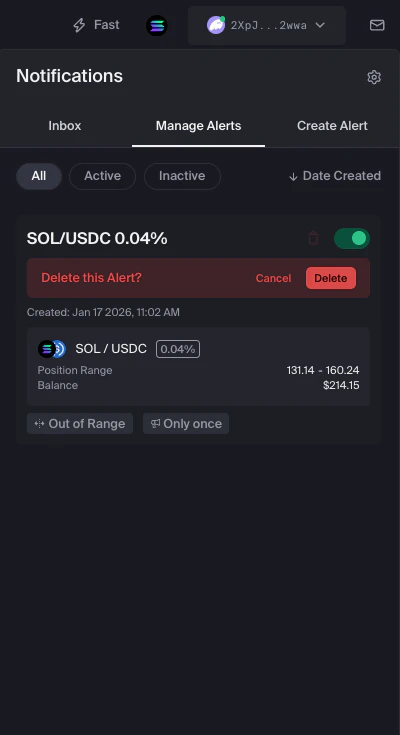
Notification Settings
Click the gear icon in the Notifications panel to configure how you receive alerts. You have three options:In-App
Alerts appear directly in your Inbox when you’re using Orca. This is enabled by default for your connected wallet.
Telegram
Click Connect Telegram to link your account. After connecting, you’ll need to subscribe to notifications in Telegram to start receiving alerts.
Enter your email address and click Send Code to verify. Once confirmed, you’ll receive alerts directly in your inbox.
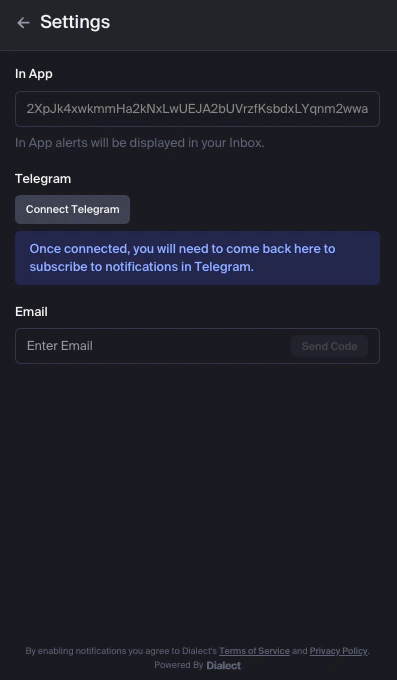
You can enable multiple notification methods. For example, receive alerts both in-app and via Telegram for redundancy.
Viewing Your Notification History
The Inbox tab shows all notifications you’ve received. Each alert notification includes:- The pool and position that triggered it
- The alert type (e.g., “Out of Range”)
- Timestamp of when it occurred
- A View Pool link to jump directly to that pool
Tips for Effective Alerts
Start with 'Only once' for new positions
Start with 'Only once' for new positions
If you’re testing the waters or just want a heads-up, use the “Only once” trigger. You’ll get one notification and can always create a new alert after.
Use 'Every time' for positions you actively manage
Use 'Every time' for positions you actively manage
For positions where you want to stay on top of every range exit, use “Every time” so you never miss a move.
Use 'Once a minute' for volatile pairs
Use 'Once a minute' for volatile pairs
Highly volatile pairs might bounce in and out of range frequently. “Once a minute” prevents notification overload while keeping you informed.
Set up Telegram for instant mobile alerts
Set up Telegram for instant mobile alerts
In-app notifications are great when you’re at your computer, but Telegram ensures you get alerts on your phone wherever you are.
What’s Coming Next
The Orca team is actively improving alerts. On the roadmap:- New & trending pool alerts — Get notified about hot opportunities
- Daily LP digests — A summary of your portfolio’s performance
Next Steps
Portfolio Overview
Learn how to monitor all your positions in one place
Harvest Your Yield
Collect the fees you’ve earned from your positions