
When you first open the Pools Page, you’ll land on the Pool Explorer. To view the Liquidity Terminal for a specific pool, click on that pool in the explorer. Once opened, the Liquidity Terminal displays the price chart alongside a range of liquidity management tools.Documentation Index
Fetch the complete documentation index at: https://docs.orca.so/llms.txt
Use this file to discover all available pages before exploring further.
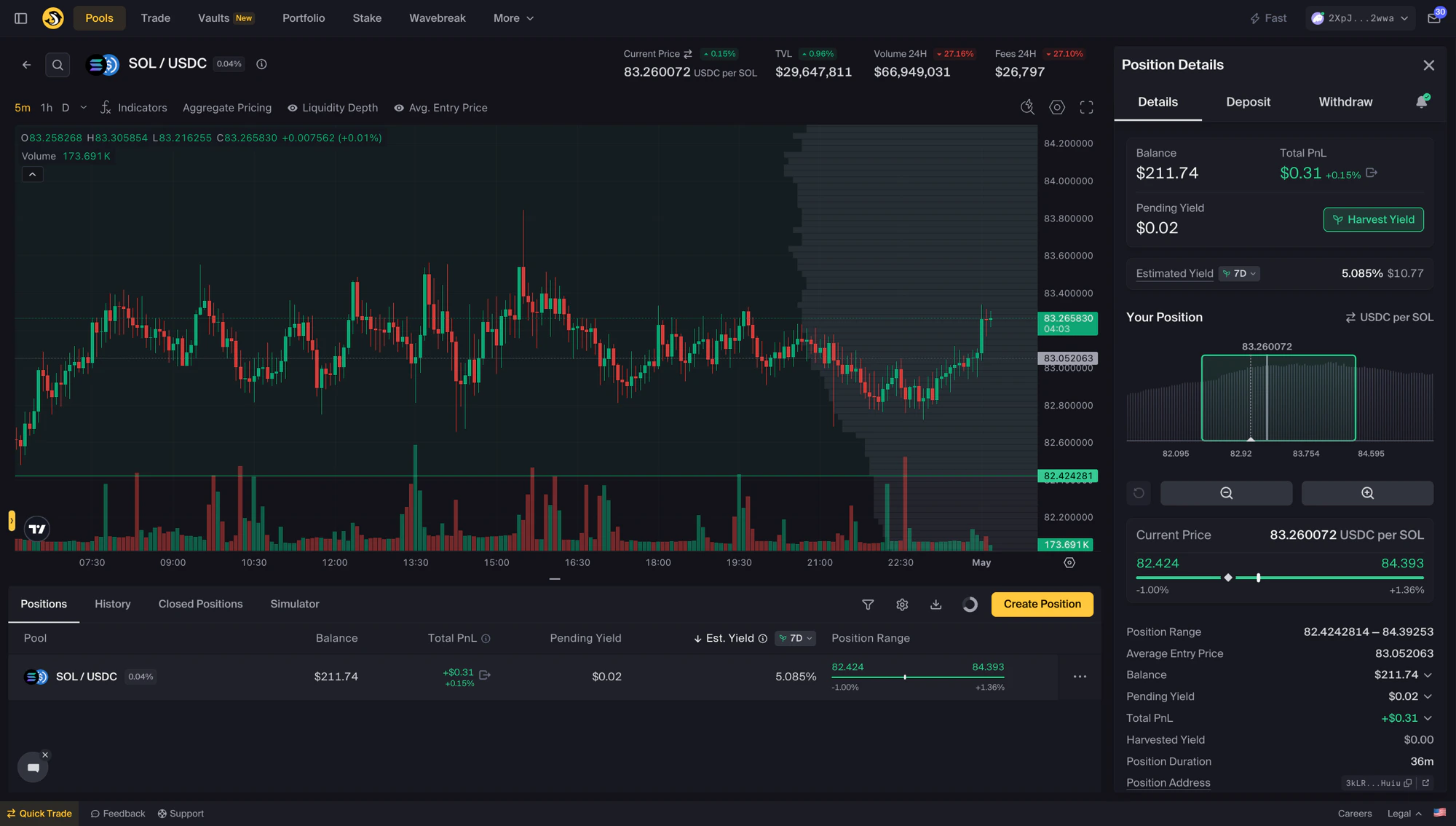
Pool Header
At the top of every Liquidity Terminal you’ll see four live stats with 24H deltas:| Stat | What it shows |
|---|---|
| Current Price | Live mid-price (with a toggle to flip the quote direction) |
| TVL | Total value locked in the pool |
| Volume 24H | Trading volume over the past 24 hours |
| Fees 24H | Fees generated in the past 24 hours |
Price Chart
Displays aggregated price history for the selected asset pair. Available controls:| Control | What it does |
|---|---|
| Timeframes | 5m / 1h / D — change the candle interval |
| Indicators | Add technical indicators |
| Aggregate Pricing | Overlay aggregated pricing |
| Liquidity Depth | Show the active liquidity distribution alongside price |
| Avg. Entry Price | Mark your position’s average entry price on the chart |
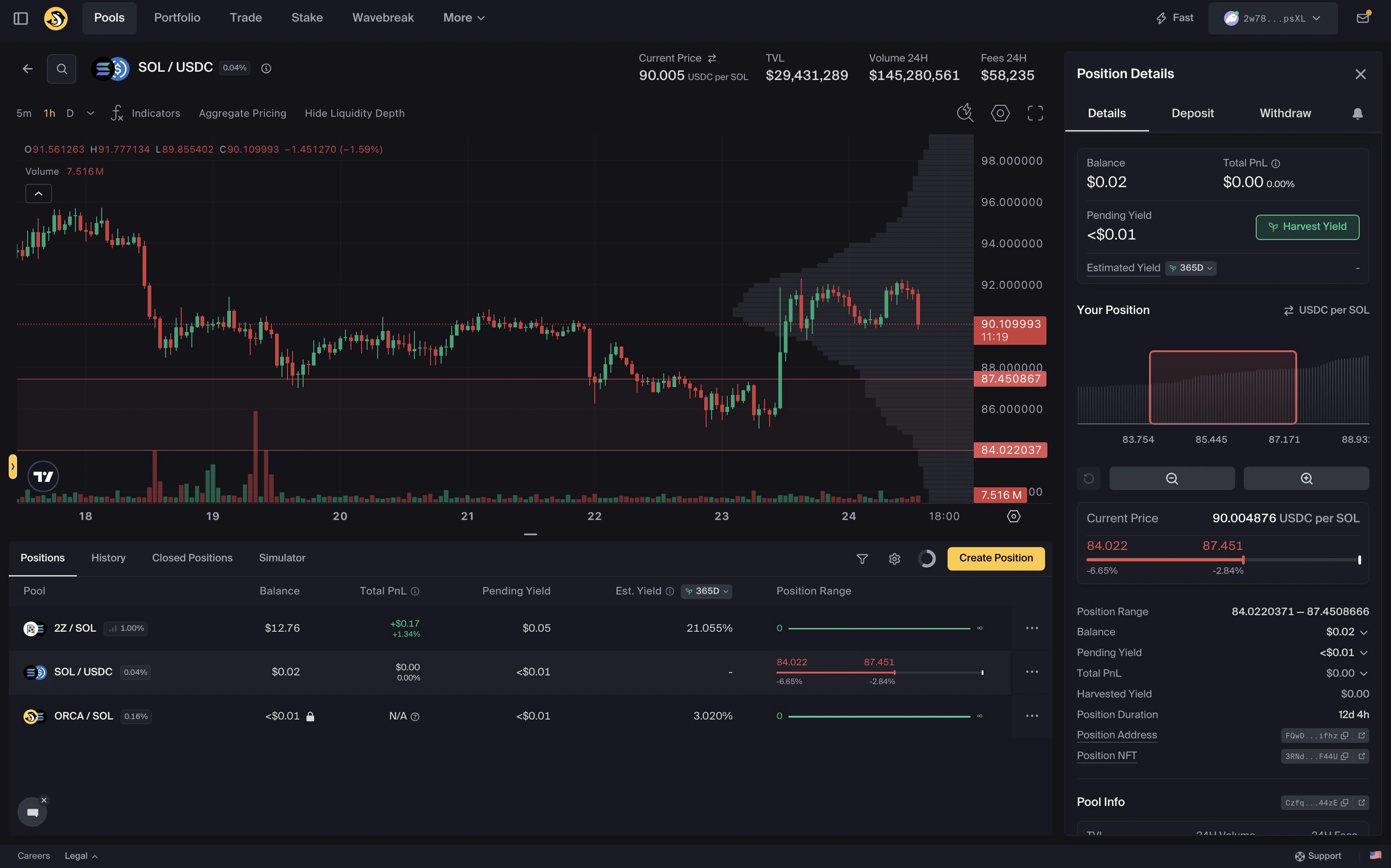
Bottom-Pane Tabs
Below the chart, four tabs let you switch context without leaving the terminal:- Positions — your active positions in this pool
- History — your transaction history for this pool
- Closed Positions — positions you previously closed in this pool
- Simulator — run a hypothetical position against historical data → see Position Simulator
Create Position Sidebar
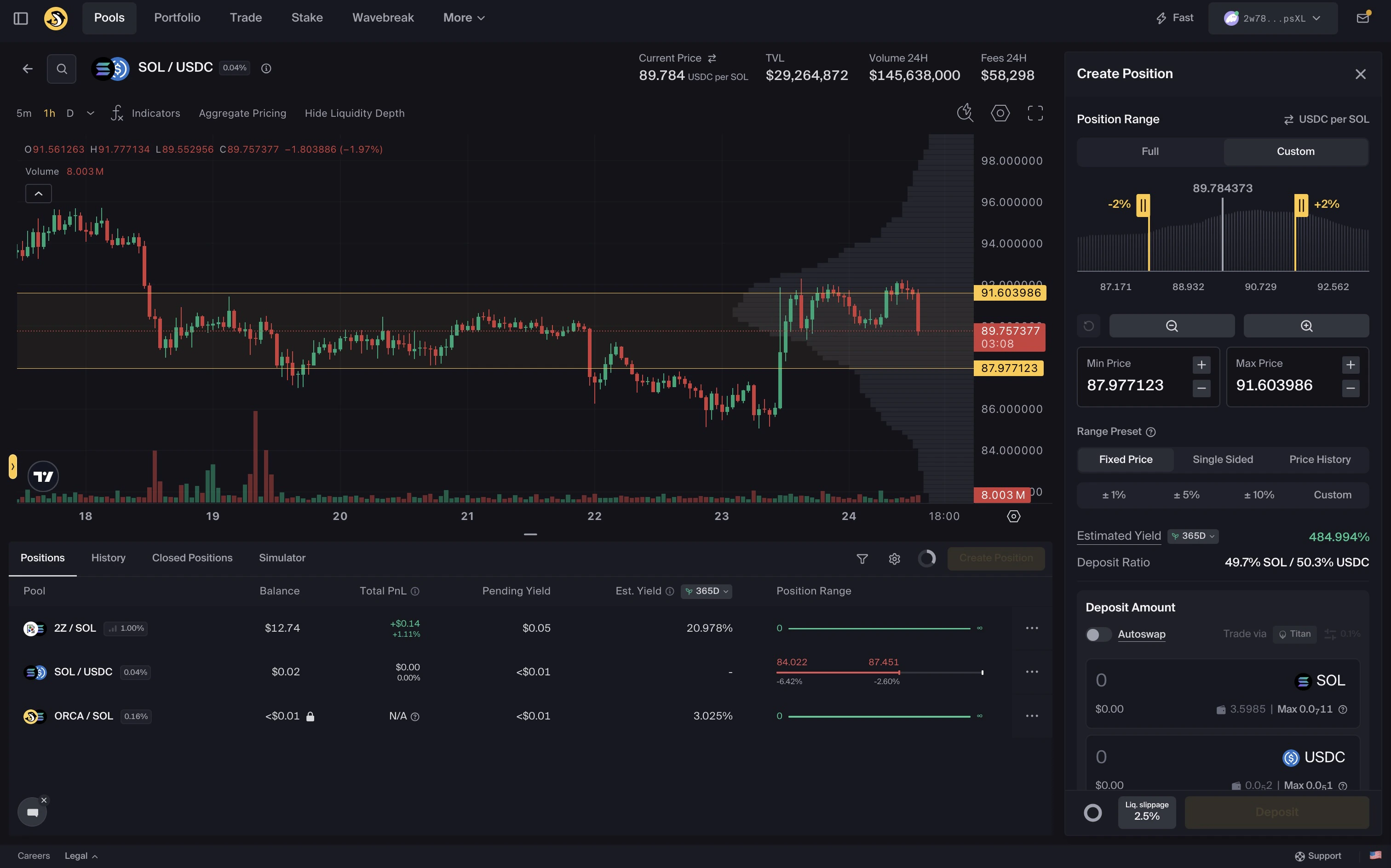
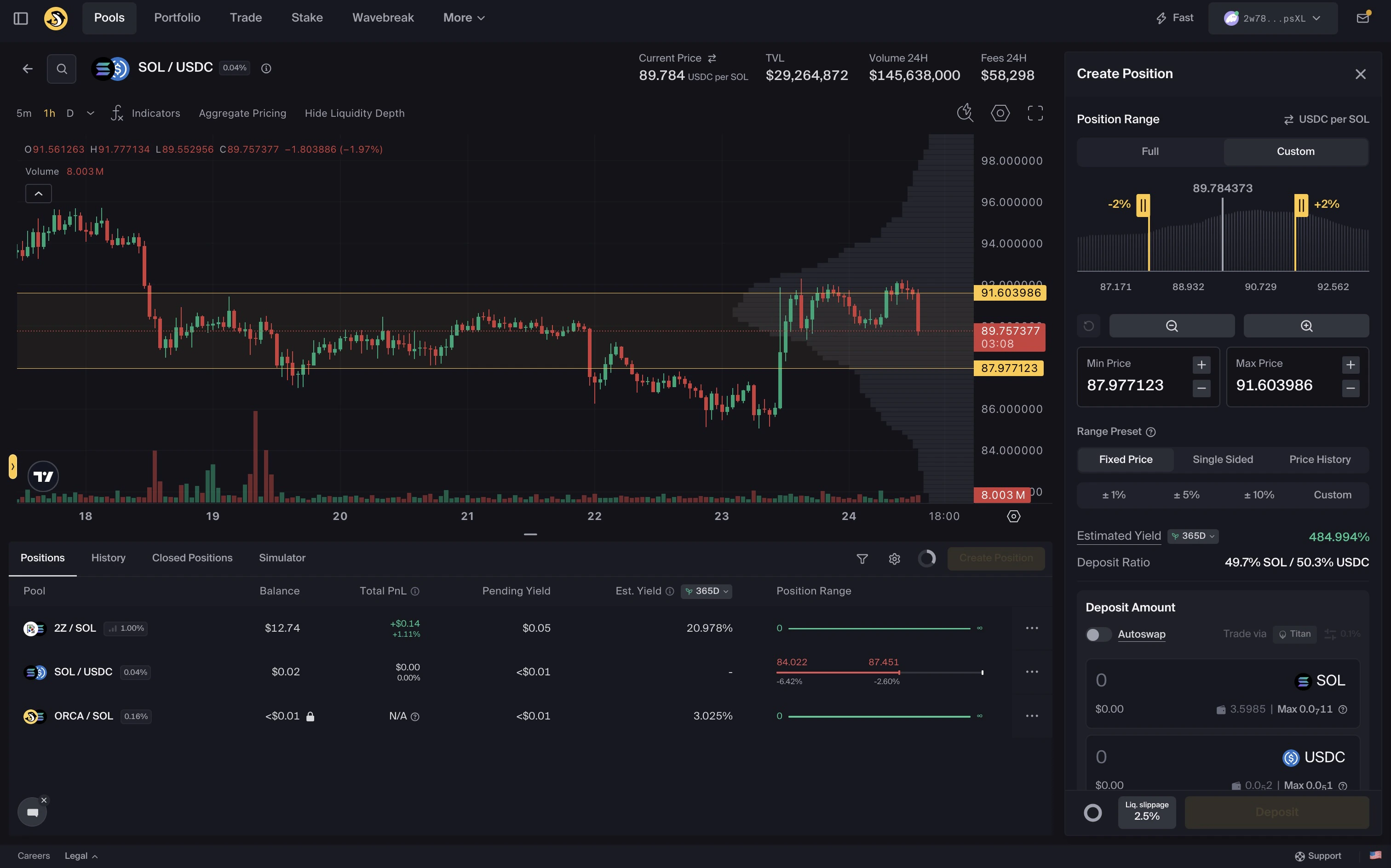
Use this sidebar to create a new position. The panel shows a Full / Custom range toggle, the current required asset ratio for the chosen range, and a range slider with quick−10% / +10% snap buttons.
→ For full steps, see:
Position Details Sidebar
When you click an existing position, the right-hand sidebar switches into Position Details mode (Details / Deposit / Withdraw tabs, plus a bell icon for alerts). The chart will also switch to the selected pair. → For the full sidebar layout, see the Position Details Sidebar Guide. You can also restore the Create Position sidebar by clicking Create Position in the bottom tab strip.We’d Love to Hear from you!
Need support or want to share feedback?- Open a support ticket directly from the Orca UI by clicking
Support(recommended) - Reach out on Discord or Telegram